Help & Guides
Everything you need to set up NowThis and get the most out of it — from connecting your Nextcloud server to typing a whole task in one line.
Getting started
The first time you open NowThis, you choose where your tasks live. You can add the other option later.
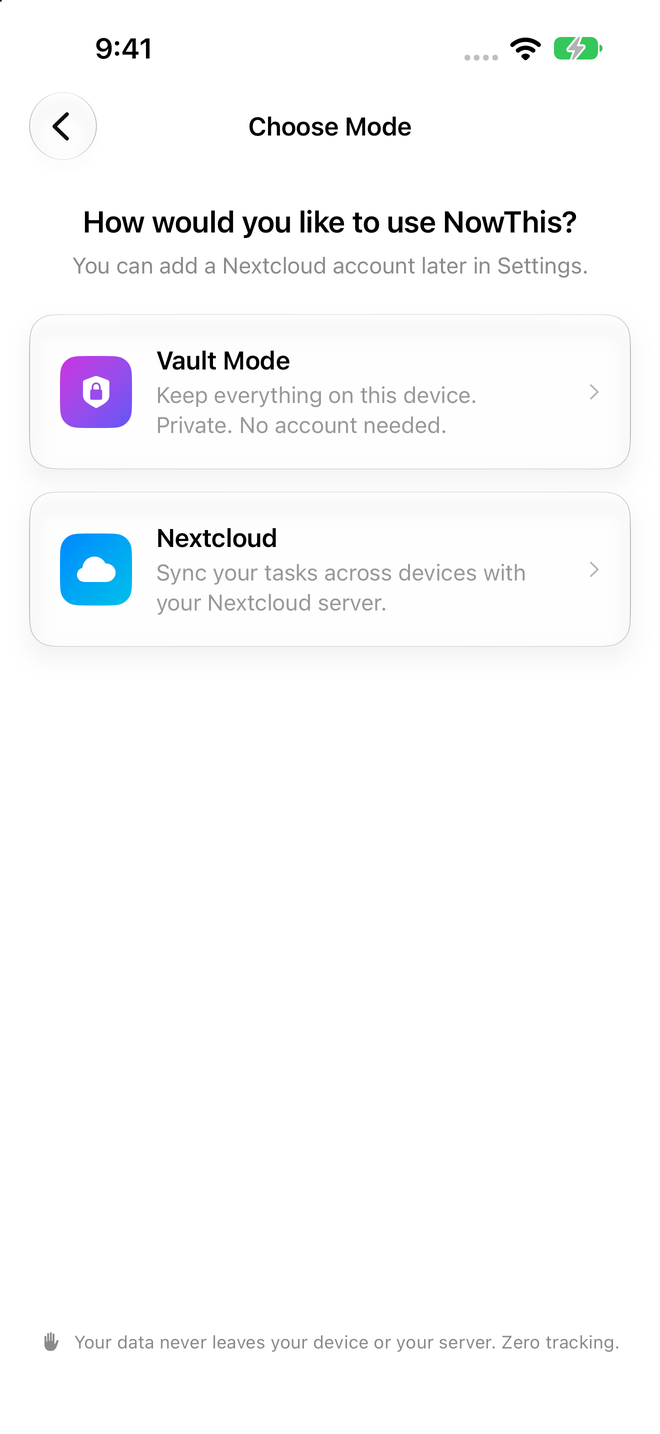
Choose a mode
Tap Get Started, then pick one:
- Vault Mode keeps everything on this device. There's no account and no server, and nothing is synced. NowThis creates a Vault with an Inbox list and you can start adding tasks right away.
- Nextcloud syncs your tasks with your own Nextcloud server, so they're on every device you sign in on. See Connecting Nextcloud.
Which one should I pick?
If you already use Nextcloud, choose Nextcloud. If you don't, start with Vault Mode. You can add a Nextcloud account at any time in Settings → Accounts → Add Account and move your tasks across with Move to List….
Which servers work?
NowThis syncs with Nextcloud, whether you host it yourself or use a provider that runs Nextcloud for you, such as Murena. Other CalDAV servers, including Radicale, Baïkal, Fastmail, iCloud, and Synology Calendar, aren't supported in this version.
Using NowThis in another language
If your device is set to a language other than English, NowThis shows a one-time About this translation note. The app's translations are made with AI, and the note includes a link to report anything that reads wrong. You can open it again from Settings → About.
Connecting Nextcloud
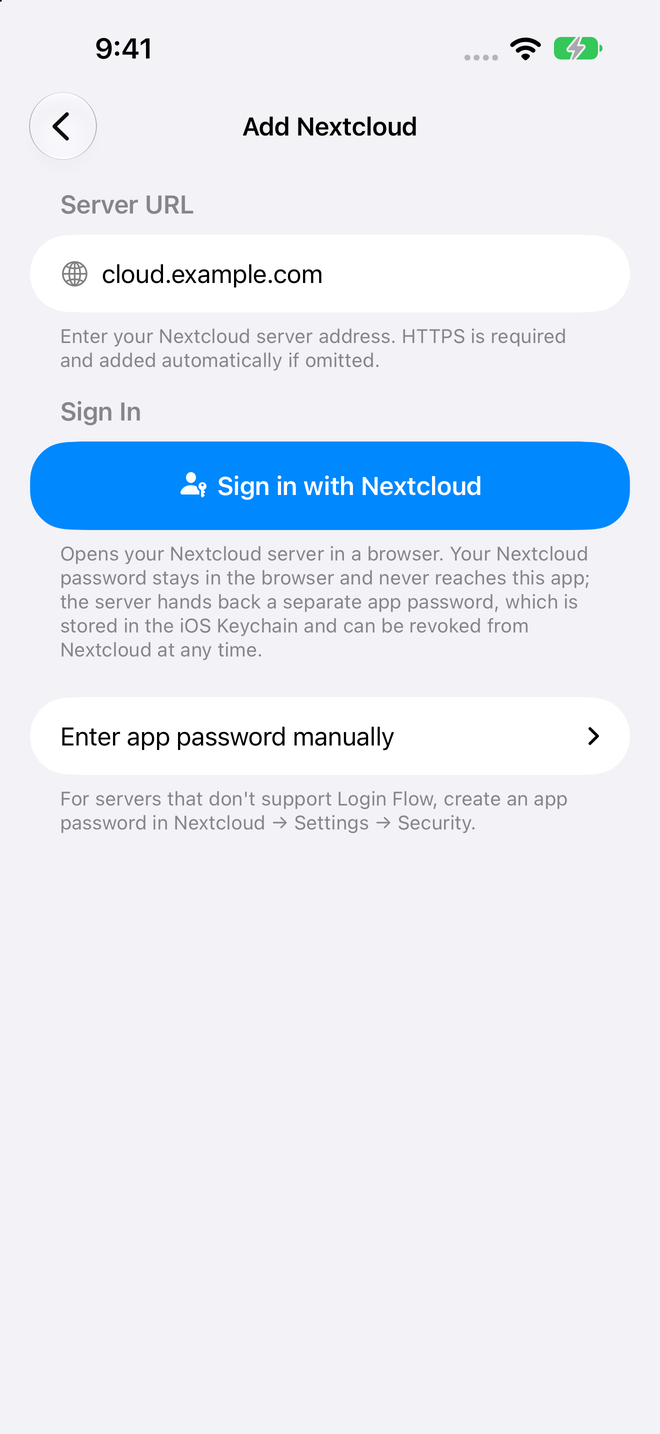
Sign in once through your server's own login page. Your Nextcloud password never reaches the app.
What you need
- A Nextcloud server you can reach over HTTPS.
- Its address, the same one you use to open Nextcloud in a browser, such as
cloud.example.com. - Nextcloud at the root of that address. Installations in a subfolder, such as
example.com/nextcloud, aren't supported in this version: sign-in works, but syncing then reports that it can't find your lists.
The Nextcloud Tasks app is optional on the server, but it's the easiest way to see the same tasks in a browser.
Sign in with Nextcloud (recommended)
- Choose Nextcloud during setup, or go to Settings → Accounts → Add Account.
- Type your address in Server URL. You can leave out
https://and NowThis adds it for you. Plainhttp://addresses aren't accepted. - Tap Sign in with Nextcloud. Your server's login page opens in a browser sheet.
- Sign in as you normally would, including two-factor authentication or single sign-on, then tap Grant access.
- The sheet closes, your account is added, and the first sync starts.
NowThis waits up to 20 minutes for you to finish signing in. Your password stays in the browser; your server gives NowThis a separate app password, stored in the iOS Keychain. You can revoke it at any time in Nextcloud under Settings → Security → Devices & sessions.
Use an app password instead
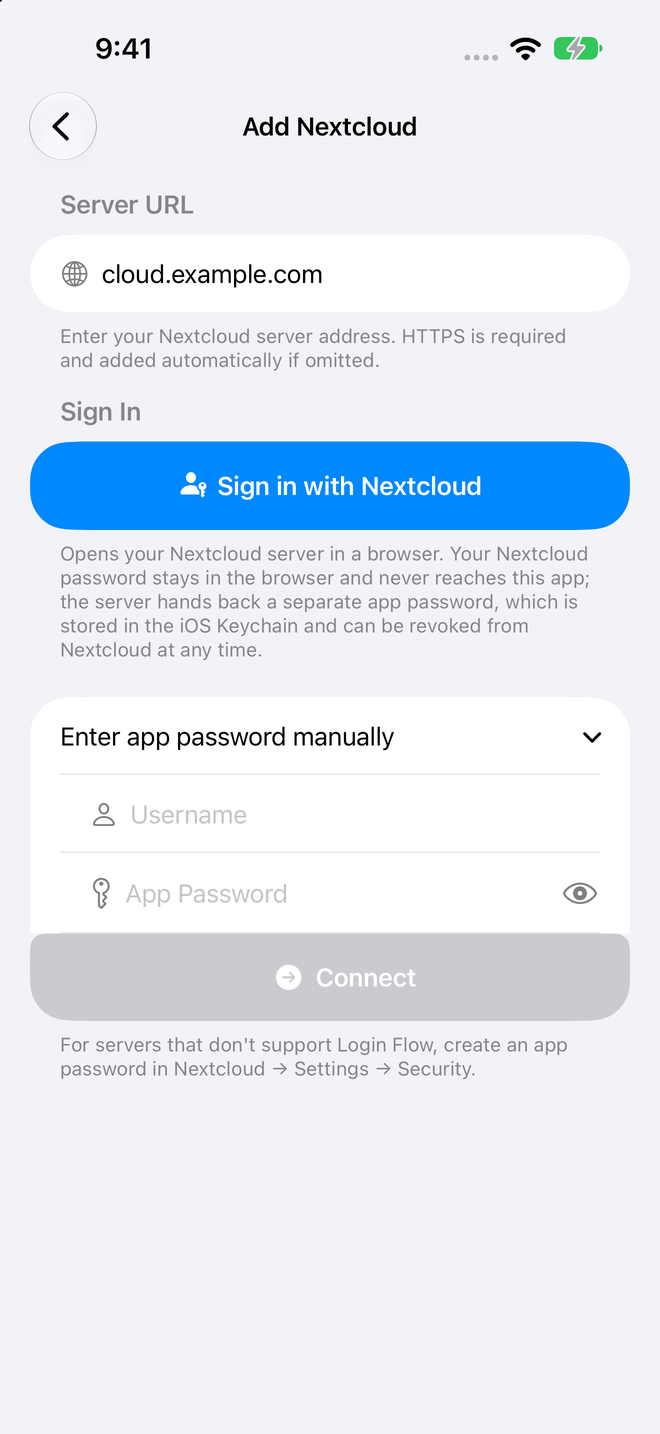
If browser sign-in doesn't work with your server, create an app password by hand:
- In Nextcloud in your browser, open Settings → Security. Under Devices & sessions, enter a name such as "NowThis" and create a new app password.
- In NowThis, tap Enter app password manually.
- Enter your Nextcloud Username and the App Password you just created, then tap Connect.
Use an app password here, not your regular Nextcloud password. If your account uses two-factor authentication, your regular password won't work.
If sign-in fails
- "Server does not support automatic login. Use an app password instead."
- The address may be wrong, browser sign-in may be turned off on your server, or a proxy in front of Nextcloud may be blocking it. Check the address, or use an app password.
- "HTTPS is required…" or "Invalid URL format…"
- Enter just the server address, such as
cloud.example.com, withouthttp://. - "Login timed out. Please try again."
- Sign-in wasn't finished within 20 minutes. Start again from Sign in with Nextcloud.
- "Could not connect to server. Please check your URL and credentials."
- The username or app password wasn't accepted. Create a fresh app password and try again.
- "Connection failed: Too many requests…"
- Your server is limiting sign-in attempts. Wait a few minutes before trying again.
- "Connection failed:" followed by another message
- Usually a network or certificate problem. NowThis uses the standard iOS certificate checks. If your server uses a self-signed certificate, install its certificate on your device and turn it on in Settings → General → About → Certificate Trust Settings.
What syncs
- Tasks and every level of subtasks, with their priorities, dates, notes, tags, completion, and manual order.
- List names and colors, and new lists you create on the server.
- Task photo previews travel with the task. Full-resolution originals are shared only if you turn on Share full-resolution photos (see Settings).
- Lists someone has shared with you as read-only show a Read-only caption; you can view them but not change them.
Journals are not synced; they stay on the device where you wrote them. Completed tasks older than your Sync History setting aren't downloaded, but tasks that are still open always are.
Sync messages
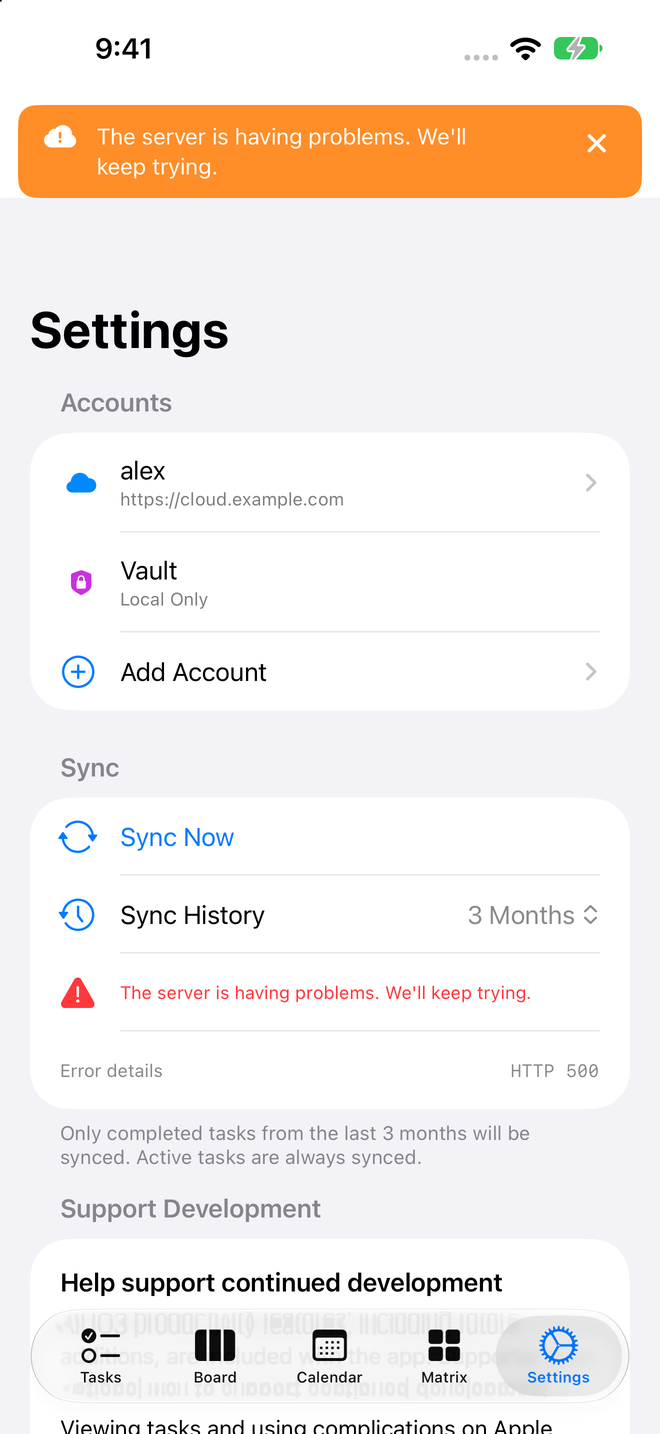
If a sync fails, NowThis shows a short message at the top of the screen. Tapping one that needs your attention opens Settings. Settings → Sync shows the time of the last sync and, after a failure, the server's error code.
- "Can't sign in — your username or password may be wrong."
- Your app password was revoked or changed. Open the account in Settings and tap Re-authenticate, or enter a new app password. NowThis stops retrying the old password, so your server won't lock you out.
- "Signed in, but your account doesn't have access to this list."
- A list's sharing permissions changed on the server. Ask the list's owner or your server administrator.
- "Couldn't find your lists. Check your server address in Settings."
- The server address is wrong, or Nextcloud is installed in a subfolder (see What you need).
- "Can't reach the server…", "The server is having problems…", or "The server is busy…"
- A connection or server problem. NowThis keeps trying on its own.
More than one account
You can add as many Nextcloud accounts as you like, alongside a Vault. Tap an account in Settings → Accounts to change its Display Name, sign in again, run Test Connection, or check Sync Status.
To remove an account, open it and choose Delete Account under Danger Zone. This removes the account from this device only; everything already synced stays on your server. New tasks that hadn't reached the server yet are saved to a Recovered Tasks list in your Vault. Unsynced edits to tasks that were already on the server are not recovered, so let the account finish syncing before you delete it.
Vault Mode
A private, on-device account. No server, no sign-in, nothing leaves your device.
How it works
A Vault works like any other account: lists, subtasks, tags, reminders, and every view work the same. It's listed in Settings → Accounts as Local Only. A Vault can't be renamed or deleted.
Moving tasks in and out
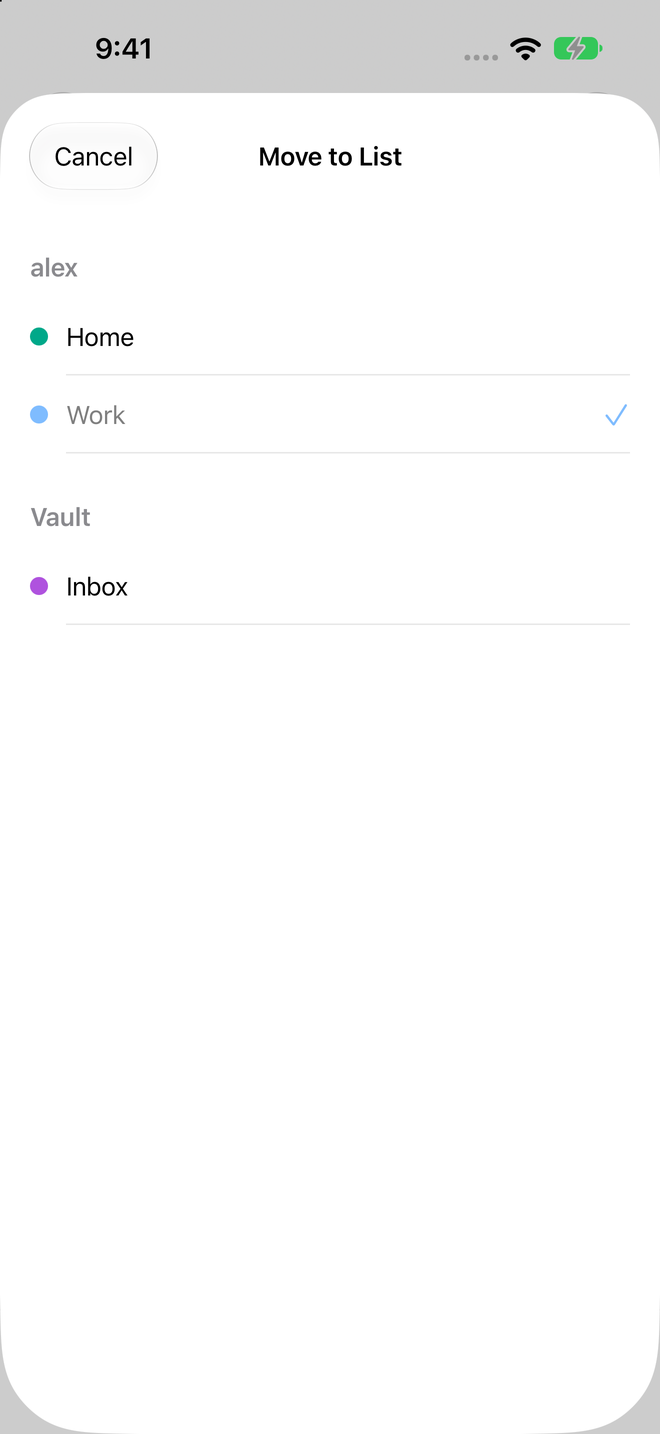
Use Move to List… to move a task between your Vault and any other account. You'll find it when you long-press a task, in a Board card's menu, and in the List row of a task's details.
- Subtasks move with their parent task.
- Moving a subtask on its own turns it into a top-level task in the new list; its parent stays where it is.
- Read-only shared lists can't be chosen as a destination.
Switching from Vault to Nextcloud
There's no one-tap conversion. Add your Nextcloud account in Settings → Accounts → Add Account, then move your tasks across with Move to List…. Your Vault stays available afterward.
Keeping a copy
NowThis doesn't have an export or backup feature of its own. Vault tasks exist only on this device. If you want your tasks on more than one device, or stored somewhere else as well, use a Nextcloud account.
Quick Add
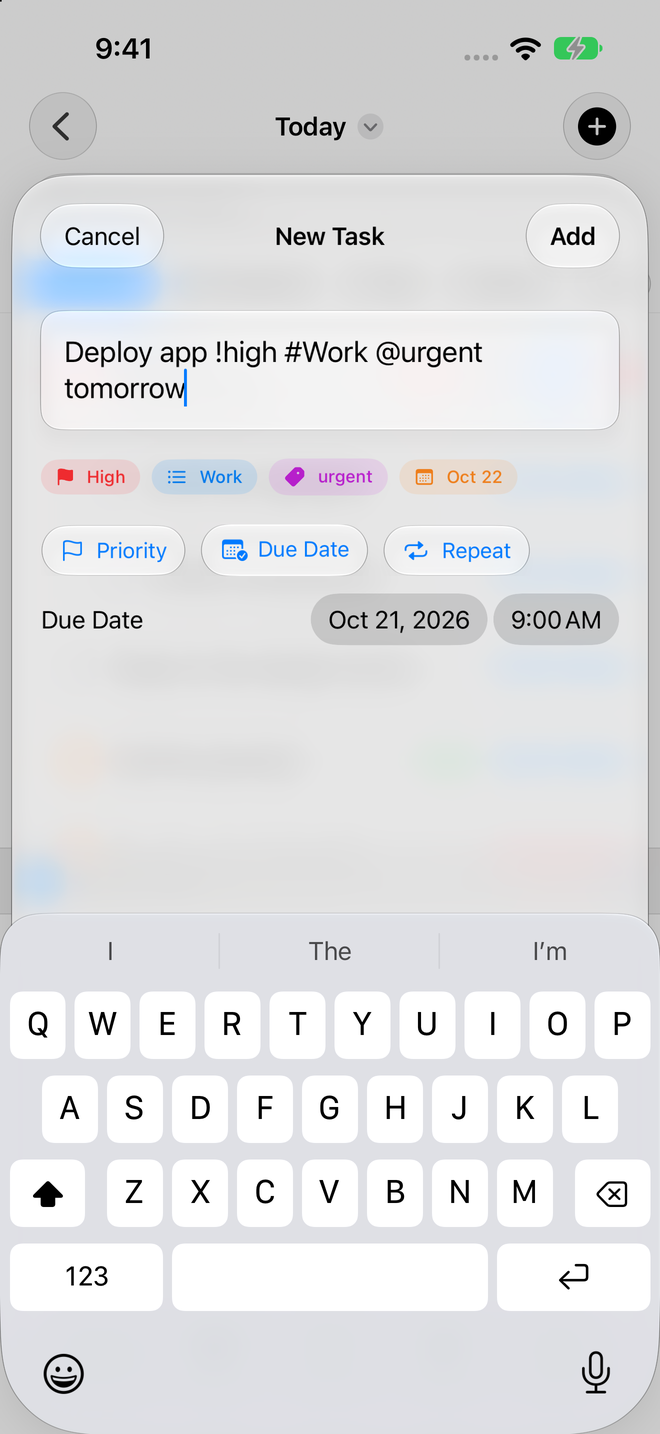
Type a whole task in one line — title, priority, list, tags, and due date — and NowThis sorts it out.
Where it works
- The New Task sheet
- Siri: say "Quick add to NowThis"
- Adding a task by voice on Apple Watch
The Add a task… field at the bottom of a list doesn't use Quick Add. Everything you type there becomes the title.
Quick Add understands English only, whatever language your device uses.
| Type | What it does |
|---|---|
!high!medium!low | Sets the priority. !med also works. Put a space before it. |
#Work | Puts the task in that list; capitals don't matter. Only lists without spaces in their names can be picked this way; for a list like "Home Projects", use Move to List afterward. If no list matches, the task goes to your default list. |
@urgent@home | Adds tags. Use as many as you like; tags that don't exist yet are created. |
todaytomorrownext fridayin 3 days | Sets the due date. |
noon5pm5:30pmat 9am17:00 | Sets the due time. A time on its own means today. |
Deploy app !high #Work @urgent tomorrowCreates "Deploy app" with high priority, in your Work list, tagged urgent, due tomorrow.
Quick Add doesn't set repeats, custom reminders, or locations. Your default reminder settings still apply. Add the rest afterward in the task's details, or use the Repeat option on the New Task sheet.
Views
The same tasks, arranged the way you need them today.
Smart Lists
Smart Lists gather top-level tasks from all your lists:
- Today: open tasks due today, plus anything overdue.
- Upcoming: tasks due in the next four weeks, grouped by week or month.
- Overdue: past-due tasks, grouped by month.
- All Tasks: everything that isn't completed.
- Completed: everything you've finished.
Tasks
- Search looks through titles, notes, locations, and tags.
- Sort by due date, start date, priority, title, created, modified, completed date, tags, or relevance, or choose Manually to arrange tasks yourself.
- When sorting manually, drag a task to reorder it. With any other sort, dropping a task onto another task makes it a subtask.
- Swipe right to complete a task, or left to delete it.
Board
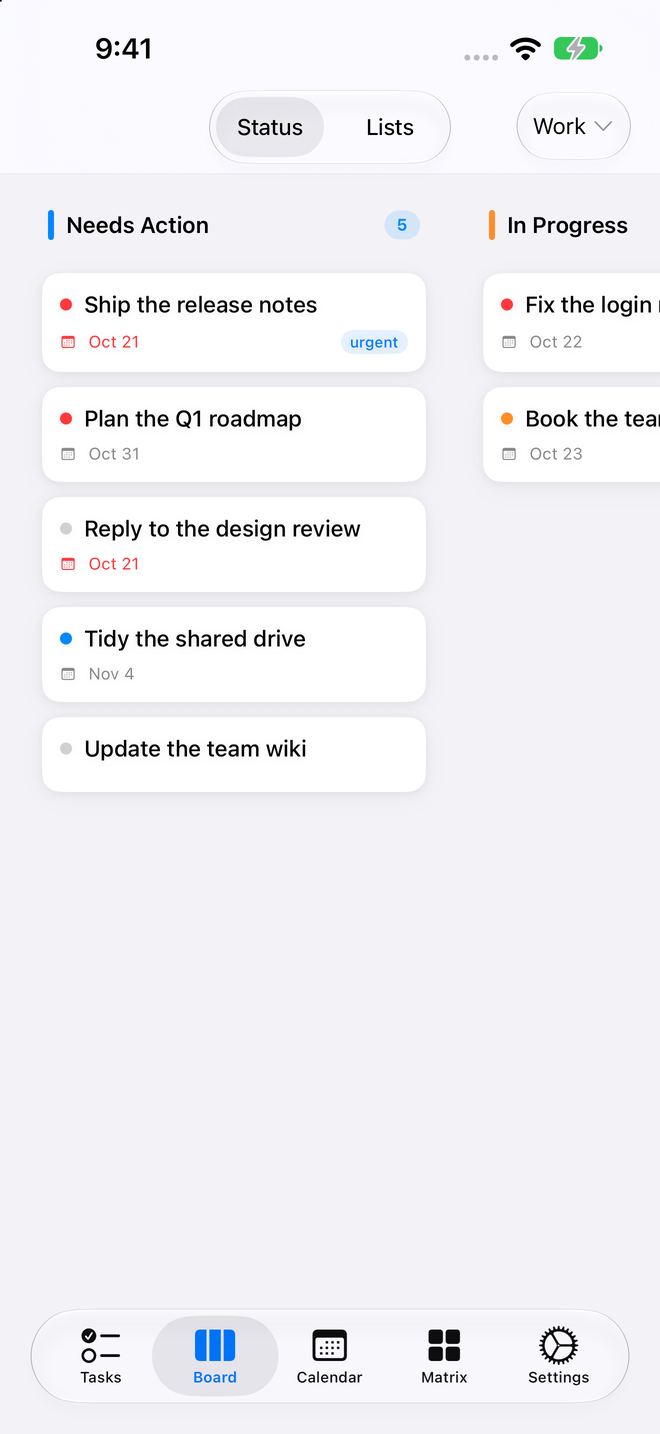
In Status mode, each list becomes three columns: Needs Action, In Progress, and Completed. Drag a card to another column to change its status, or drag it within a column to reorder. A card's menu also offers Move to Top, Move Up, Move Down, Move to Bottom, and Move to List….
In Lists mode, swipe to page through your lists.
Calendar
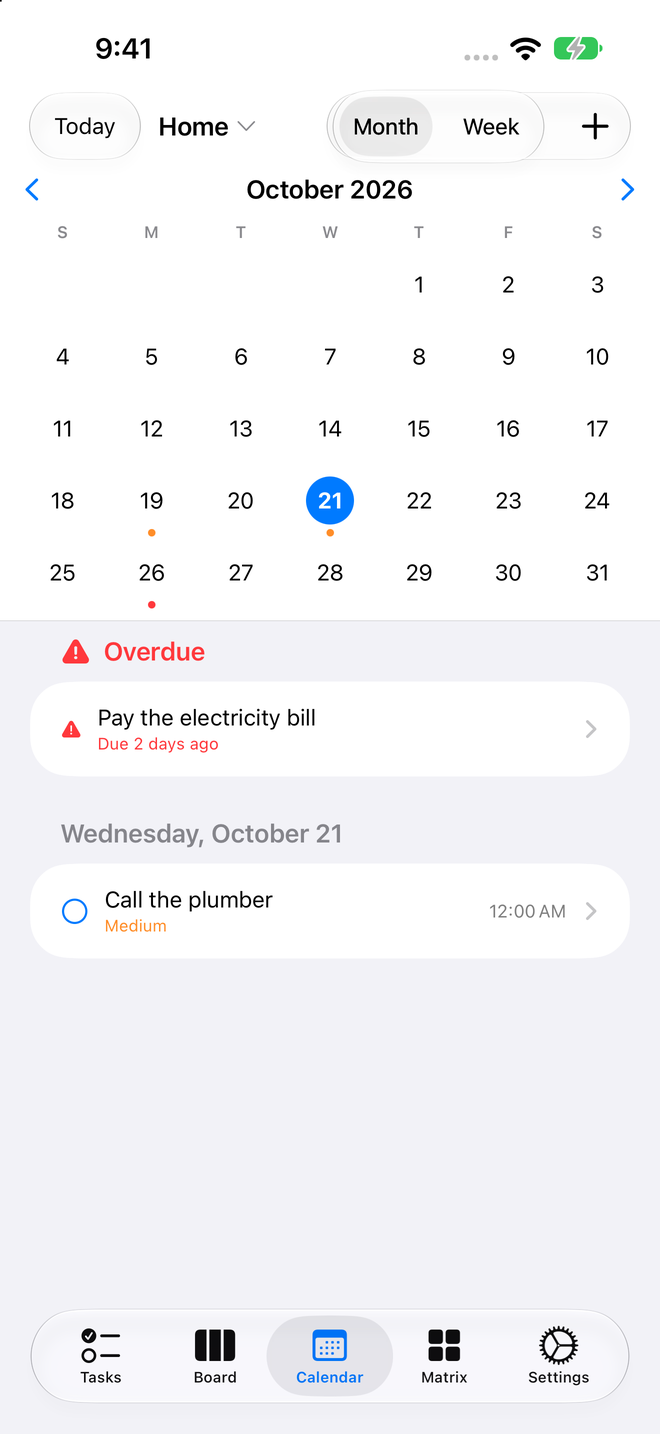
Switch between Month and Week, and tap Today to jump back. Each day's dot takes the color of its highest-priority task. Drag a task onto another day to reschedule it; its time of day stays the same.
Matrix
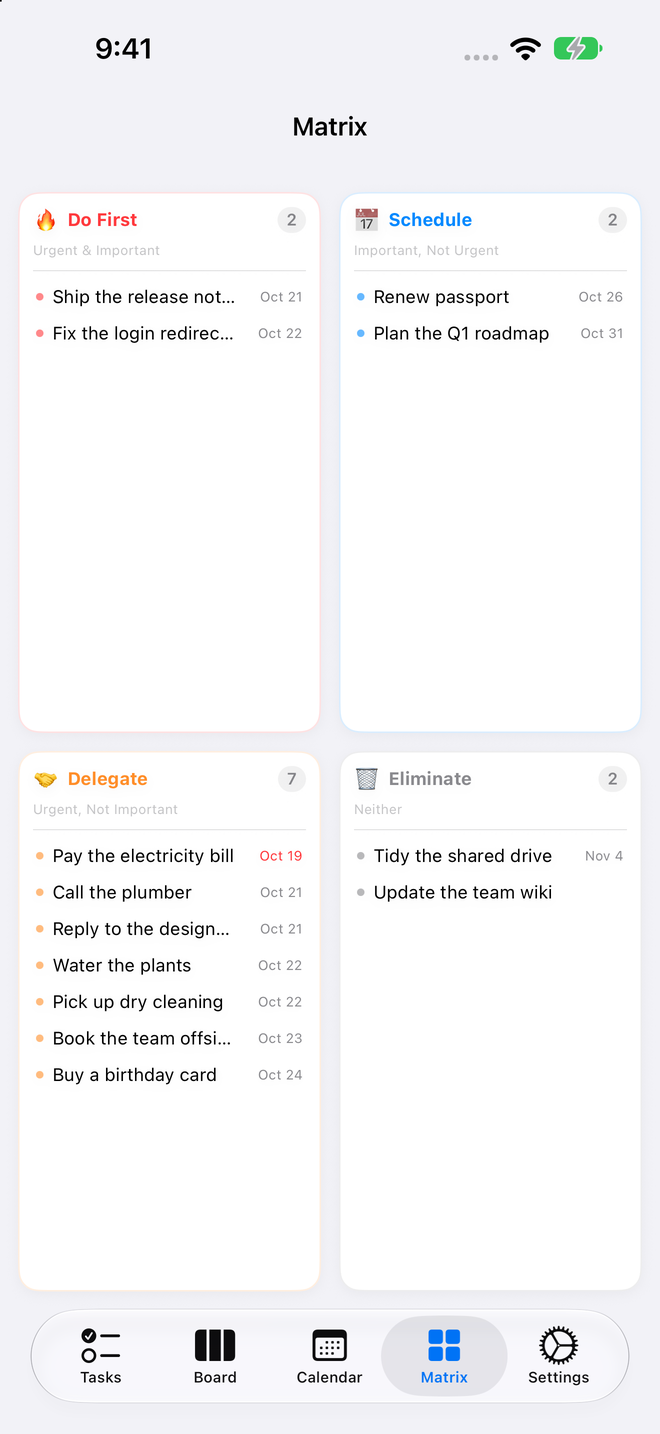
The Eisenhower Matrix sorts open tasks from all your lists into four quadrants. Important means high priority. Urgent means due within three days, or overdue.
- Do First: important and urgent
- Schedule: important, not urgent
- Delegate: urgent, not important
- Eliminate: neither
To move a task to another quadrant, change its priority or due date.
Filters
Save a custom view with New Filter. Combine status, priority, tag, list, due before, due after, whether a task has a due date, and title, and choose whether tasks must match All of or Any of your rules. Filters can't be edited after you save them; delete the filter and create a new one instead.
Journals
Open Journals from the sidebar to write Markdown entries. Use Link Task to connect an entry to one or more tasks; the task then lists it under Linked Journals. Journals stay on this device and aren't synced.
Choose your tabs
Tasks is always the first tab and Settings the last. In between, you can show up to three of your choice: Board, Calendar, Matrix, or any Smart List. Set them up in Settings → Tab Bar. Views you leave out are still available from a list's title menu.
Working with tasks
Subtasks, repeats, reminders, and photos.
Subtasks
Tap Add Subtask in a task's details. Subtasks can have their own subtasks, as deep as you need, and they sync to Nextcloud as real subtasks.
Repeating tasks
Under Repeat, choose daily, weekly, monthly, or yearly, or Custom for "every N days", weeks, months, or years. Weekly repeats can fall on specific weekdays. When you complete a repeating task, it moves to its next date instead of disappearing. You can also set an end date.
Reminders
A task with a due date can remind you at the due time, or 5, 15, or 30 minutes, 1 hour, or 1 day before. Turn on Repeat Hourly Until Completed for things you can't let slip. To get a reminder for every new task with a due date, turn on Remind Me About New Tasks in Settings.
Photos
In a task's details, open Photos and tap Choose Photos or Take Photo. Each task can hold up to five photos. Tap a photo to view it, see the full-resolution original, or remove it.
Settings explained
Every option, in the order you'll find it.
Accounts and Sync
- Accounts: your Vault and Nextcloud accounts. Tap a Nextcloud account to edit it, or tap Add Account.
- Sync Now: sync immediately.
- Sync History: how far back completed tasks are synced: 1, 3, 6, or 12 months, or All. Default: 3 months. Open tasks always sync.
- Last Sync and Error details: when the last sync finished, and the server's error code if it failed.
Support Development
Every feature on iPhone and iPad is included with the app. NowThis Supporter is optional: it unlocks editing tasks on Apple Watch (checking off and adding tasks) and the Supporter app icons, and it funds continued development. Choose Monthly, Annual, or Lifetime; the app shows the price in your currency. If you bought NowThis Pro before, you already have Lifetime.
Here you'll also find Restore Purchases, Manage Subscription, and Leave a Tip. Tips are optional and repeatable, and they don't unlock anything. See Supporter & Tips for plans and prices.
Calendar Integration
Show tasks with due dates as events in a calendar. Sync to Apple Calendar asks for calendar access the first time. Sync to Nextcloud Calendar appears once you've added a Nextcloud account and writes events to a separate calendar on your server. Both are off by default.
Notifications
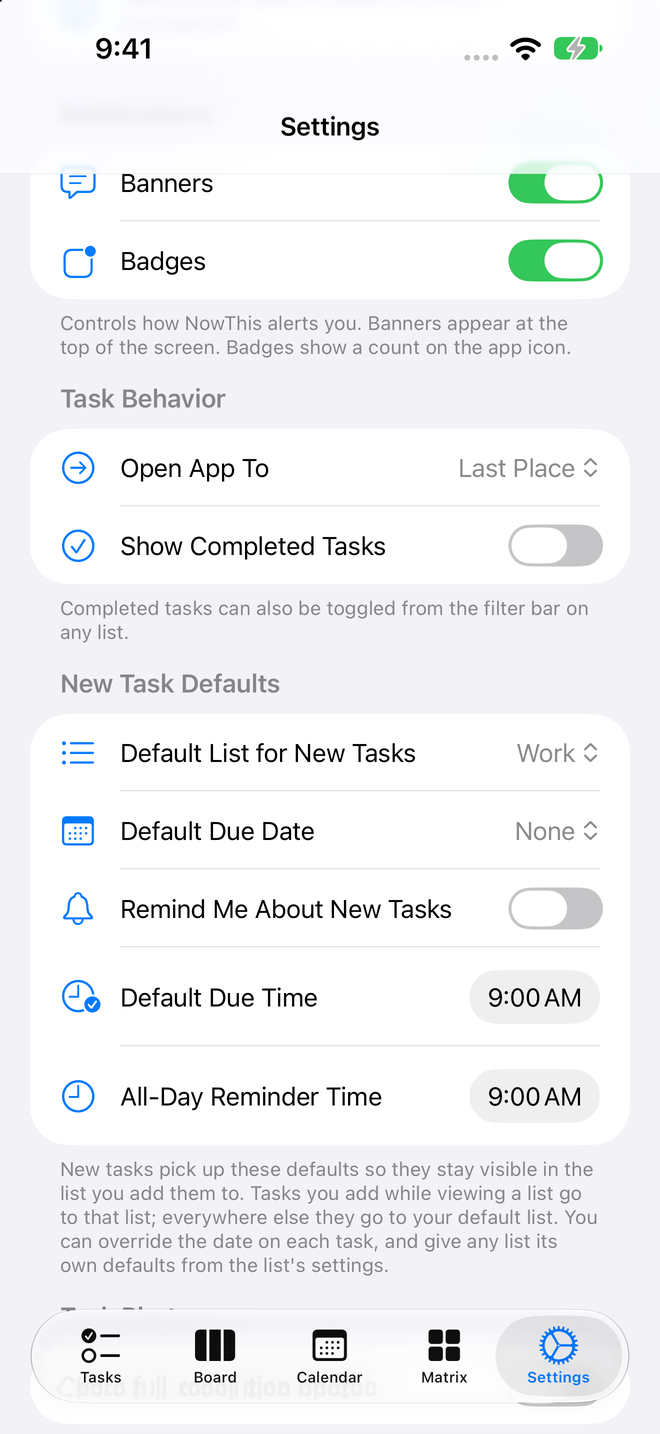
- Banners: show a reminder's banner while NowThis is open.
- Badges: the number on the app icon: overdue tasks plus tasks whose reminder has already gone off.
Task Behavior
- Open App To: where NowThis opens. Last Place by default, or any tab or Smart List.
- Show Completed Tasks: show finished tasks in lists and the calendar. Off by default. You can also switch it from the filter bar on any list, and the Board's Completed column always shows them.
New Task Defaults
- Default List for New Tasks: where new tasks go. Tasks you add while viewing a list go to that list instead. Siri and Apple Watch use the default list too.
- Default Due Date: None, Today, Tomorrow, or Next Week (7 days from today). Tasks you add inside the Today list are always due today.
- Default Due Time: the time given to a default due date. 9:00 AM unless you change it.
- Remind Me About New Tasks: give every new task that has a due date a reminder at its due time.
- All-Day Reminder Time: when reminders for all-day tasks go off. 9:00 AM unless you change it.
Each list can have its own defaults: long-press the list in the sidebar, choose Edit List, and set Default Due Date and Default Reminder. These per-list settings stay on this device.
Task Photos
Share full-resolution photos is off by default, so only a smaller preview is synced with each task. Turn it on to share originals (up to 25 MB each) through Nextcloud Files. Originals can include location and other camera details. The setting applies to photos you add after changing it. On a shared list, the list owner has to set up sharing for originals. If you remove someone's access to a list, they may still be able to open its original photos until the owner's app syncs. In a Vault, originals stay on your device.
Everything else
- Siri & Shortcuts: example phrases, and Custom Siri Phrases to make your own in the Shortcuts app.
- Tab Bar: choose, hide, and reorder up to three middle tabs. Reset to Default restores Board, Calendar, and Matrix.
- Sidebar Layout: reorder or hide Filters, Journals, Tags, and Lists. Smart Lists always come first.
- Appearance: System, Light, or Dark, and App Icon. The default icon is free. If a Supporter subscription ends, you keep the icon collections you earned while it was active.
- About: version and build numbers.
Widgets are set up from your Home Screen, not in NowThis Settings. See Siri, widgets & Apple Watch.
Siri, widgets & Apple Watch
Add and check tasks without opening the app.
Siri
Say any of these. "NowThis" is part of every phrase:
- "Quick add to NowThis": dictate a whole task using Quick Add.
- "Add a task to NowThis" or "Remind me in NowThis"
- "What's due today in NowThis"
- "Show my tasks in NowThis"
- "How many tasks do I have in NowThis"
- "Complete a task in NowThis"
- "Search tasks in NowThis"
On iOS 26 and later, "Add a task to NowThis" can ask when the task is due if you don't say a date and Ask for Due Date is turned on. "Quick add to NowThis" never asks: it uses the date you said, or your default due date.
Shortcuts
NowThis actions in the Shortcuts app: Add Task (title, list, priority, due date, notes, and tag), Quick Add Task, Complete Task, Delete Task, Show Tasks, Task Count, Tasks Due Today, and Search Tasks.
Widgets
Add the NowThis Tasks widget from your Home Screen. Small shows 3 tasks, medium 5, and large 10. Touch and hold the widget, then tap Edit Widget to choose which Lists it shows (leave it empty for all) and whether to Show Overdue tasks. On medium and large widgets, tap a task to complete it. Widgets refresh about every 15 minutes.
Focus filters
In iOS Settings → Focus, add the NowThis Lists filter to a Focus and choose its Visible Lists. While that Focus is on, other lists are hidden from the sidebar's Lists section. Smart Lists, Board, Calendar, Matrix, widgets, and notifications aren't affected.
Spotlight
Search for any task from your Home Screen. Results stay up to date as you edit and sync.
Apple Watch
The watch app opens to Today. Browse lets you open Today, Overdue, Upcoming (next 7 days), All, and each of your own lists. Tasks come from your iPhone, which does all the syncing.
Viewing tasks on the watch is free. With NowThis Supporter, you can also check tasks off and add new ones: tap +, dictate the task (Quick Add works here too), and pick a due date and priority. New tasks go to your default list.
Complications
Add NowThis Tasks to a watch face or the Smart Stack. The circular version shows how many tasks are left today, the rectangular one also shows your next task, and the inline one shows a count. Complications are free.
Still stuck, or found something that doesn't match your app? Contact support →